Automating Access Tokens in Postman (No More Copy-Paste)
If you’re testing APIs that use OAuth 2.0 (or any expiring bearer token), you’ve probably done the annoying loop:
- request a token
- copy it
- paste into Postman
- do it again when it expires
This guide shows two practical setups:
- Option A (Simple): Create a token request and save the token automatically to an environment variable
- Option B (Fully Automatic): Use a collection pre-request script to refresh the token whenever it’s missing/expired
What you’ll achieve
By the end, you’ll have:
access_tokenstored automatically in Postman- (Optional)
token_expires_atto track expiry - Collection requests automatically sending
Authorization: Bearer {{access_token}} - Optional “set it and forget it” auto-refresh behavior
Prerequisites
You’ll need:
- Token endpoint (example:
/oauth/token) client_idandclient_secret(or your equivalent)- Grant type (commonly
client_credentials) - Optional
scope/audience
Step 1: Create environment variables
In Postman, create an Environment (or use Collection Variables) and add:
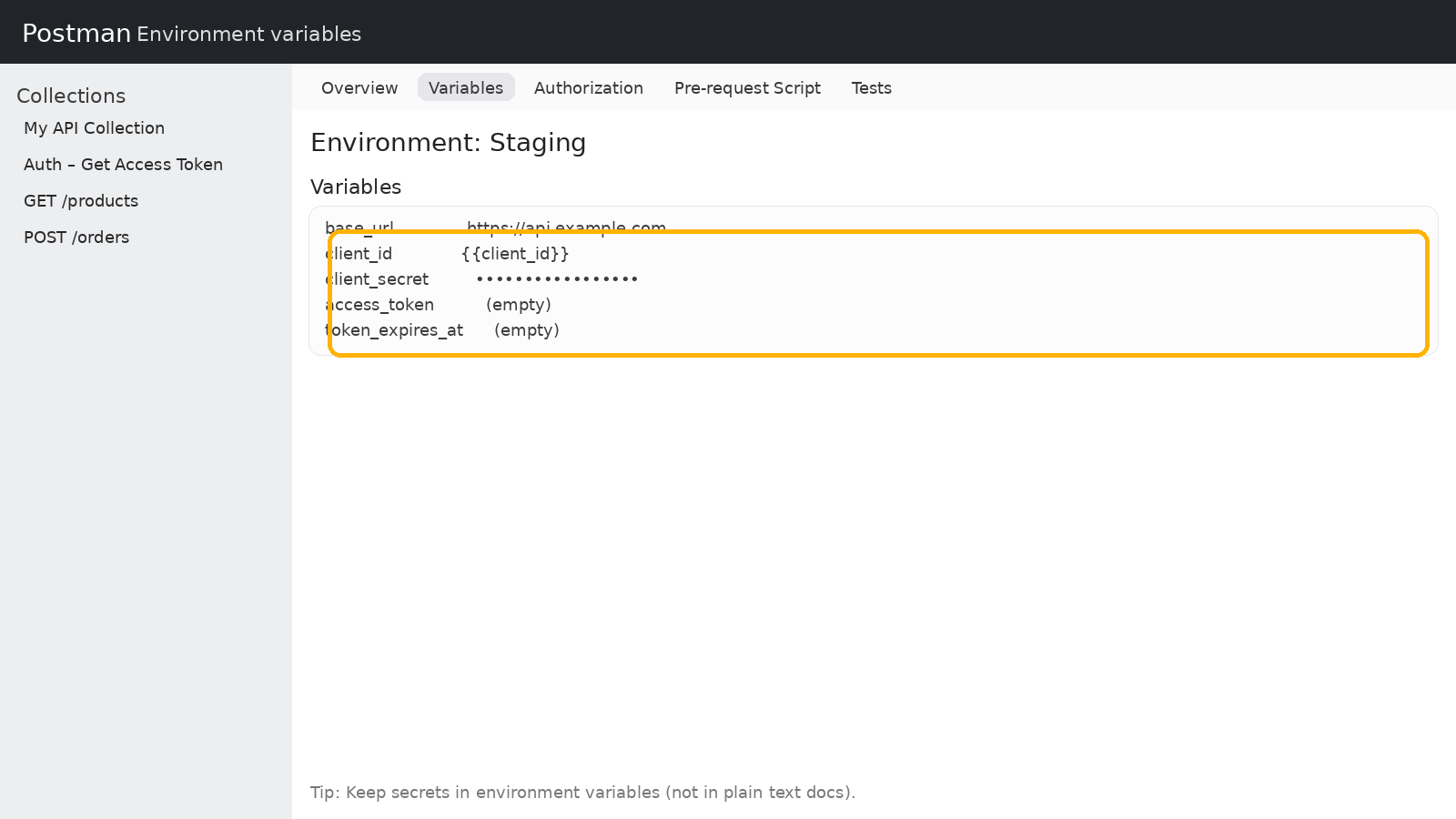
base_urlclient_idclient_secretaccess_token(empty to start)token_expires_at(empty to start)refresh_token(optional)
Figure 1 — Environment variables setup
Option A (Recommended): Token request + auto-save token
Step 2: Create “Auth – Get Access Token” request
Create a new request named Auth – Get Access Token:
- Method:
POST - URL:
{{base_url}}/oauth/token
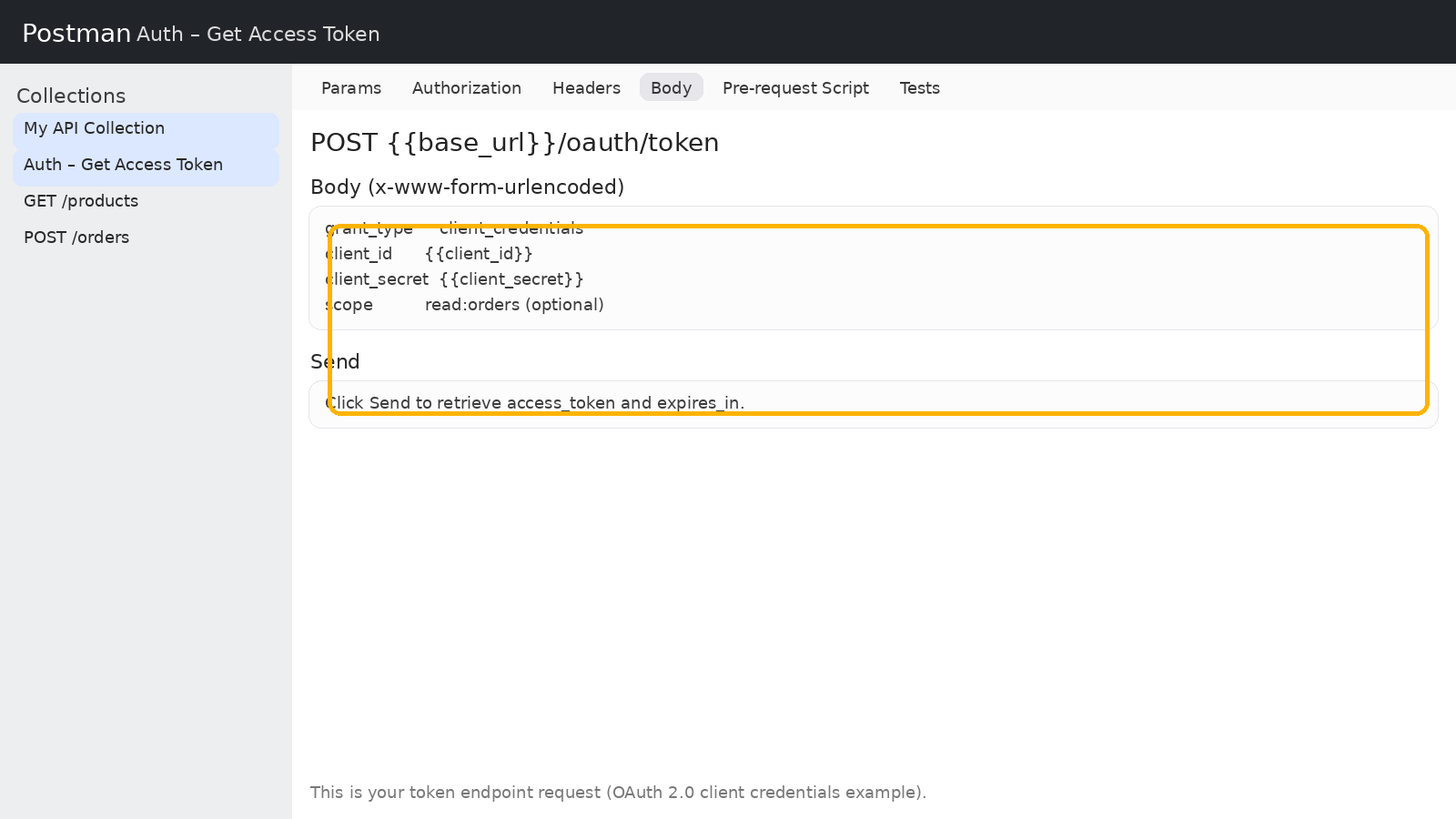
Body → x-www-form-urlencoded (typical for OAuth2 token endpoints):
grant_type=client_credentialsclient_id={{client_id}}client_secret={{client_secret}}scope=read:orders(optional, if your API requires it)
Figure 2 — Token request Body (x-www-form-urlencoded)
Step 3: Save the token automatically (Tests tab)
Go to the Tests tab of the token request and paste:
// Parse response JSON
const json = pm.response.json();

// Save access token
pm.environment.set("access_token", json.access_token);

// Save expiry timestamp (optional but useful)
if (json.expires_in) {
  const expiresAt = Date.now() + (json.expires_in * 1000) - 5000; // 5s buffer
  pm.environment.set("token_expires_at", String(expiresAt));
}

// Save refresh token if present
if (json.refresh_token) {
  pm.environment.set("refresh_token", json.refresh_token);
}

console.log("✅ Access token saved");

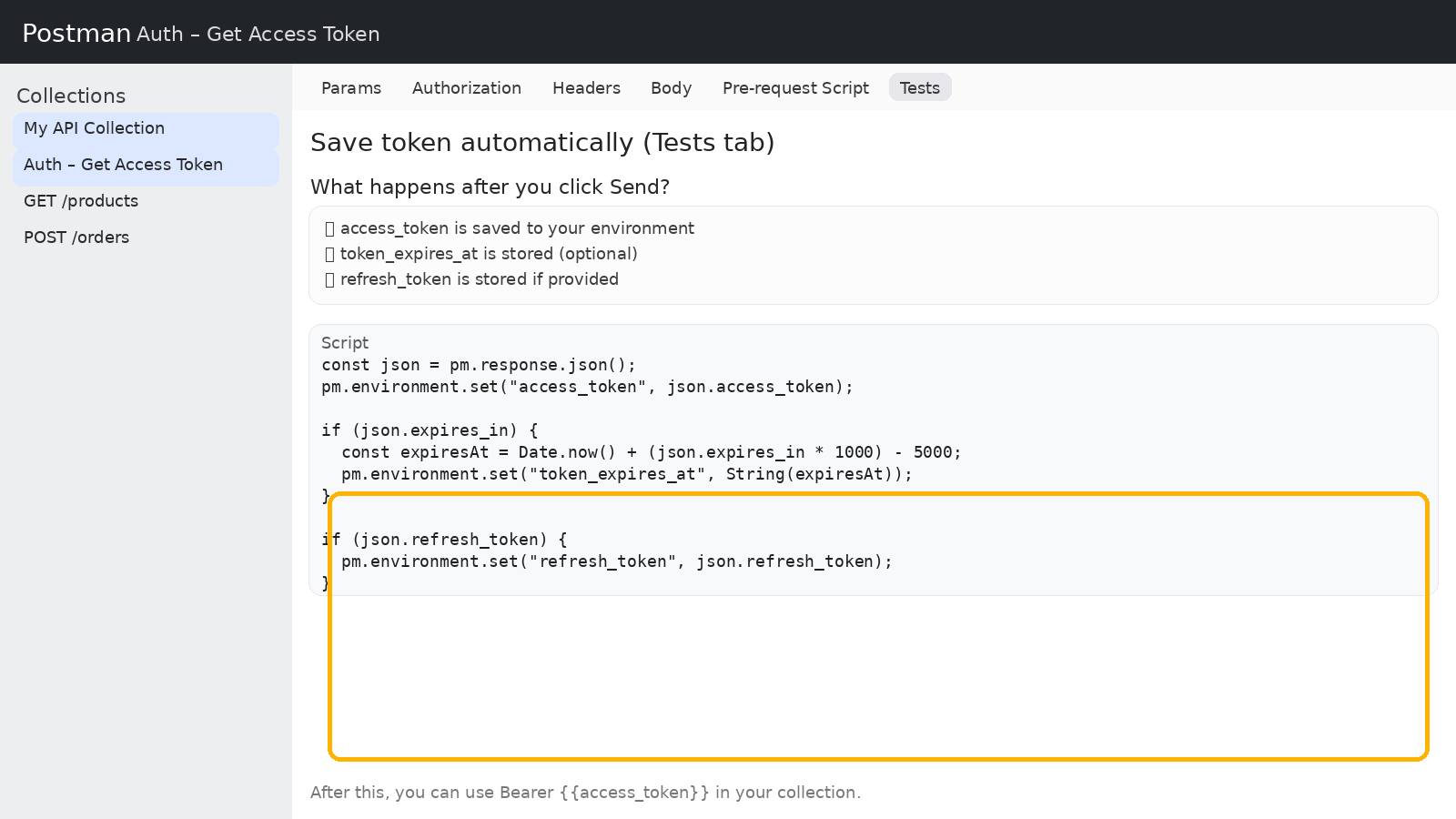
Now click Send on the token request. Your environment should populate with access_token.

Figure 3 — Tests script saving access_token automatically
Step 4: Apply token automatically to every request (Collection Authorization)
Set auth at the Collection level:
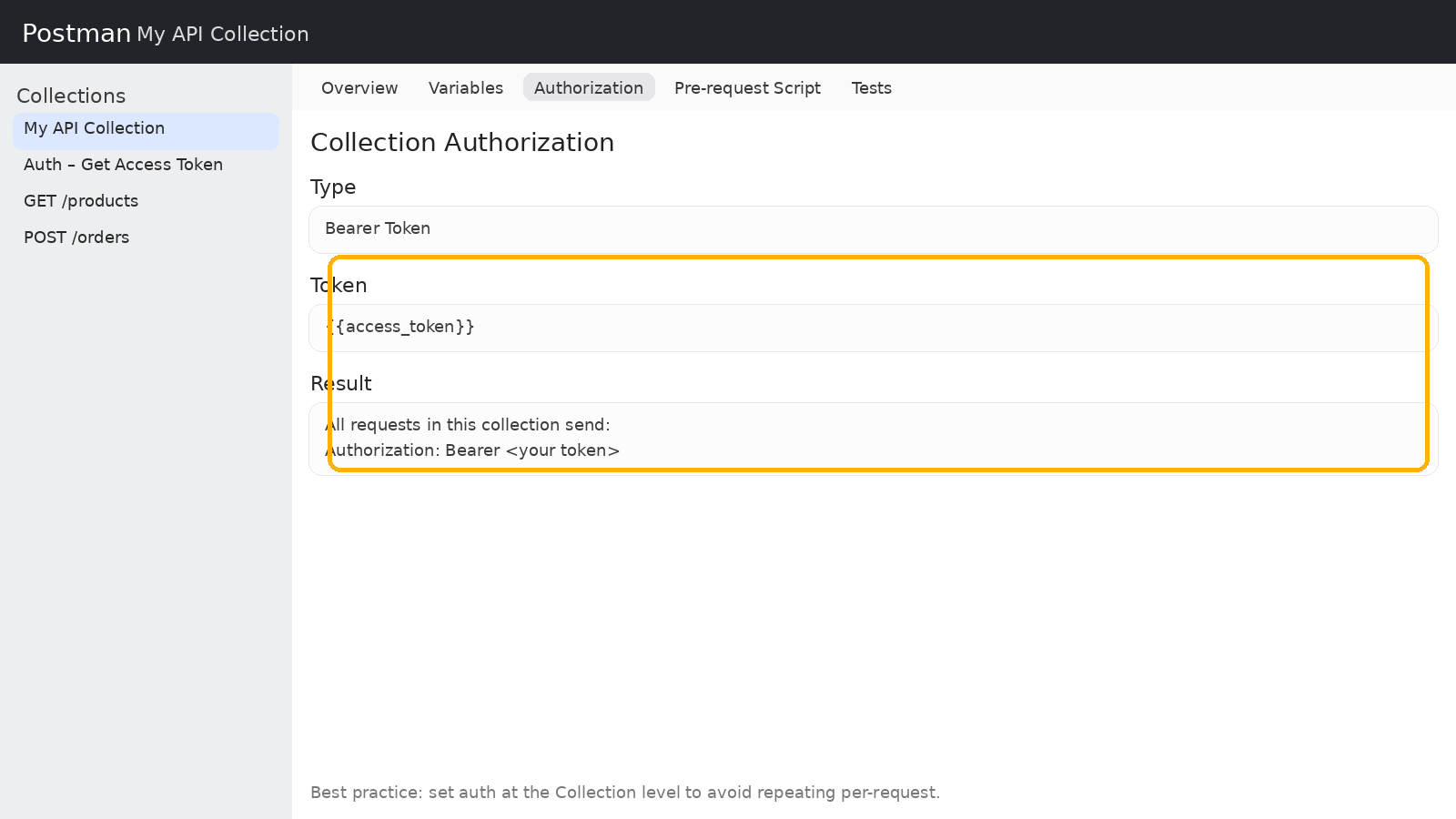
Collection → Authorization
- Type: Bearer Token
- Token:
{{access_token}}
This makes every request in the collection send the token without repeating auth per request.
Figure 4 — Collection Authorization using {{access_token}}
✅ At this point, you’re done with Option A.
Typical workflow: run “Auth – Get Access Token” once, then test any API endpoint.
Option B (Fully Automatic): Auto-refresh token in a Pre-request Script
If you want Postman to fetch a token automatically when it’s missing/expired, add a collection-level pre-request script.
Collection → Pre-request Script:
function isTokenValid() {
  const token = pm.environment.get("access_token");
  const expiresAt = pm.environment.get("token_expires_at");
  if (!token) return false;
  if (!expiresAt) return true;
  return Date.now() < Number(expiresAt);
}

function fetchToken() {
  const baseUrl = pm.environment.get("base_url");
  const clientId = pm.environment.get("client_id");
  const clientSecret = pm.environment.get("client_secret");

  pm.sendRequest({
    url: `${baseUrl}/oauth/token`,
    method: "POST",
    header: { "Content-Type": "application/x-www-form-urlencoded" },
    body: {
      mode: "urlencoded",
      urlencoded: [
        { key: "grant_type", value: "client_credentials" },
        { key: "client_id", value: clientId },
        { key: "client_secret", value: clientSecret }
        // { key: "scope", value: "read:orders" } // if needed
      ]
    }
  }, (err, res) => {
    if (err) {
      console.log("❌ Token request failed:", err);
      return;
    }

    const json = res.json();
    pm.environment.set("access_token", json.access_token);

    if (json.expires_in) {
      const expiresAt = Date.now() + (json.expires_in * 1000) - 5000;
      pm.environment.set("token_expires_at", String(expiresAt));
    }

    if (json.refresh_token) {
      pm.environment.set("refresh_token", json.refresh_token);
    }

    console.log("✅ Token refreshed automatically");
  });
}

if (!isTokenValid()) {
  fetchToken();
}
Figure 5 — Collection Pre-request Script for auto-refresh
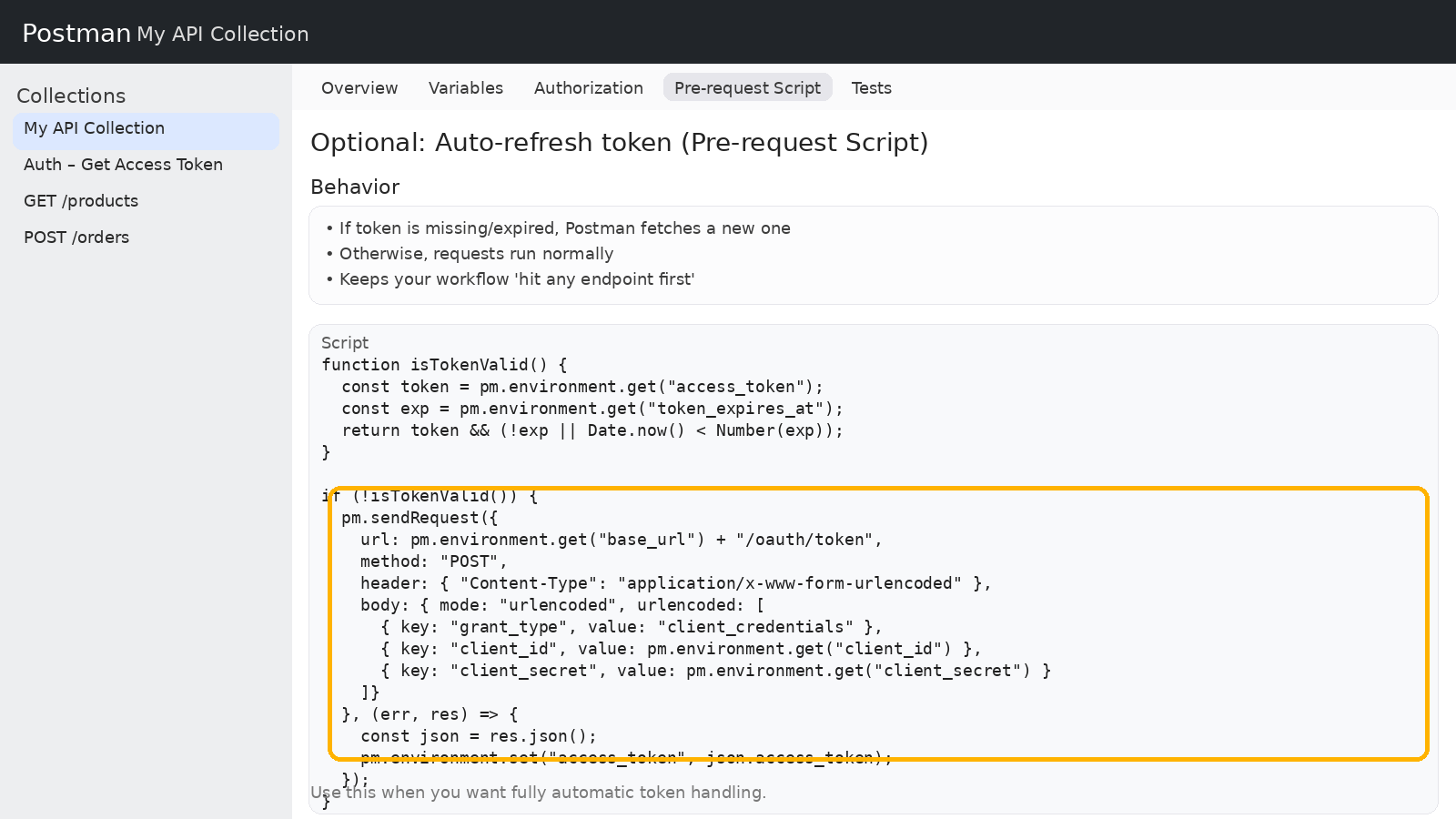
✅ With Option B, you can hit any endpoint first and Postman will fetch a token when needed.
Troubleshooting tips
- Token not applied?
Make sure Collection Authorization usesBearer {{access_token}}. - Variables not updating?
Ensure the correct environment is selected (top-right in Postman). - Your token endpoint expects JSON instead of form data?
Switch body to raw JSON and update headers accordingly. - 401 still happens sometimes?
Tokens can be revoked early. Consider refreshing on 401 (advanced), or use short expiry buffers.
Security notes (don’t skip)
- Keep secrets in environment variables, not hardcoded in requests
- Avoid sharing environments with real secrets in public workspaces
- If you export collections, make sure secrets are not included


